Overview
This article explains how to configure Microsoft Entra ID (formerly Azure AD) Single Sign-On (SSO) authentication with JetPatch.
It covers both the Entra ID setup and JetPatch configuration required to enable secure SSO access.
This guide is intended for system administrators responsible for implementing authentication integration between JetPatch and Microsoft Entra ID.
Pre-Req
JetPatch Application server must be able to communicate with the Microsoft Entra ID (fka Azure AD) authentication endpoint.
For most customers, that will be https://login.microsoftonline.com
See this Microsoft article for more details.
Main Flow
To apply Microsoft Entra Single Sign-On (SSO), we need to configure Entra ID and then configure JetPatch. From Entra ID configuration, we will retrieve next properties for the intigua.properties file :
- azure.activedirectory.tenant-id
- spring.security.oauth2.client.registration.azure.client-id
- spring.security.oauth2.client.registration.azure.client-secret
- spring.security.oauth2.client.registration.azure.redirect-uri
- azure.activedirectory.user-group.allowed-groups
Configuring Active Directory
Configuring Entra ID is complicated, and the Entra ID GUI could change.
We will go step-by-step and provide screenshots.
(Optional) Create a tenant if needed
Entra provides tenants, which are basically instances that you can use.
- Go to the Azure portal
- Select "All resources."
-
Search "Azure Active Directory"
Click "create" and fill in all necessary data
Switch to a tenant you want to work with
Click on the user icon in the top menu
Click on “Switch directory” reference
Creation App Registration
Once you have switched to your tenant, select "Active Directory."
For the next steps, you will need full admin rights.
Click on "App registrations."
Create a new registration by clicking the “New Registration” button
|
Note: The account type must be "multitenant". The current Spring Boot starter does not work with single tenants. However, users from different tenants will not be able to log in - only users belonging to the tenant in which the 'app registration' was created are allowed to log in - this is also demonstrated in page # 37. |
|
Important: The redirect URL pattern https://{ip-or-dns-where-jetpatch-will-be-installed}/vmanage-server/oauth2/code/azure. This URL we will use as a value for spring.security.oauth2.client.registration.azure.redirect-uri property. If this URL do not match with URL we specify in intigua.properties, you will not be able to log in. |
Click the button "register."
Now we could get 2 properties that we need in JetPatch
azure.activedirectory.tenant-id
spring.security.oauth2.client.registration.azure.client-id
Select "Authentication"
In the Web "Platform configuration", check both options under "Implicit grant and hybrid flows" and click the “Save” button
Click on "Certificates & secrets."
Click the “New client secret” button to create a new client secret, which will be the value for spring.security.oauth2.client.registration.azure.client-secret property
Provide a description that you prefer and an expiration date, then click the “Add” button
Click the “copy to clipboard” icon to get the value for
spring.security.oauth2.client.registration.azure.client-secret
property.
Note! If you refresh this page, you will lose the possibility of getting this value
Click on "API permissions."
Click the “Add a permission” button
Click the "Microsoft Graph" section button
Follow the instructions in the image to add "User.Read" permissions
Click on the "Grant admin consent" button
Click “Yes” in the pop-up message
Configure Token to get group information
Click on the “Token configuration” button
Click on the “Add groups claim” button
Select the “Security groups” checkbox, and then click on the “Add” button
You will see that claims are added
Go back to your Active Directory tenant by clicking on the tenant name link and clicking on "User settings."
Click the “Manage how end users launch and view their applications” link
Validate that "Users can consent to apps accessing company data on their behalf" is set to "Yes" (this should be good by default)
Go back to your Active Directory tenant by clicking on the tenant name link
Click the “Groups” button
Click the “New group” button
Provide the group name and click the ”Create” button. Specify jetpatch as “Group name”, click “Create.”
You will be redirected to a list of groups, find the group that you created, and click on the corresponding list item
You will be redirected to the group overview page.
On this page, you will copy the ID of the created group.
This ID will be used as the name of the JetPatch Azure group
After the group is created, we can assign users to that group
Now we have all properties
azure.activedirectory.tenant-id
spring.security.oauth2.client.registration.azure.client-id
spring.security.oauth2.client.registration.azure.client-secret
Spring.security.oauth2.client.registration.azure.redirect-uri
And value for JetPatch Azure group
azure. group
Configuring JetPatch
Edit intigua.properties file
For versions before 5.0:
vim /usr/share/tomcat/default/conf/intigua.properties
post 5.0:
vim /usr/share/intigua/services/data/intigua-main/conf/intigua.properties
Add the next properties
|
azure.activedirectory.tenant-id=228ae8af-967c-4755-8cc0-86677503674f spring.security.oauth2.client.registration.azure.client-id=3e0393e0-c86b-4ae3-9a00-1cfbd36e7a03 spring.security.oauth2.client.registration.azure.client-secret=nHY7Q~KBjFoc0EUKcX~yauBOk4ziQ.mWsDCJc spring.security.oauth2.client.registration.azure.redirect-uri=https://dns-name/vmanage-server/oauth2/code/{registrationId} azure.activedirectory.user-group.allowed-groups=azure_lib_requirea_not_empty_value |
Restart Tomcat for versions before 5.0
systemctl restart tomcat
Restart intigua-main for prior 5.0
docker restart intigua-main Register JetPatch Azure group
Log in as standard admin user
Click the “Platform configuration” icon
Click the “Users” tab
Click the “Add User / Group” link
Select the “Azure group” option.
Pass azure.group value into the “Azure group ID” field
(Optional) Specify a name for the JetPatch Azure group for more readability. There is no obligation to name this group the same as the name in Azure.
Specify permissions, scopes, and tools for users belonging to this group.
Click the “Save” button
JrtPatch Azure group provides the possibility to manage all rights of members who belong to this group. After initial setup of groups, the customer could manage access directly from Azure AD by changing the assignment of users to different groups.
Usage scenario
Log in with SSO User
Log out and click the “Login with Azure AD” link to log in
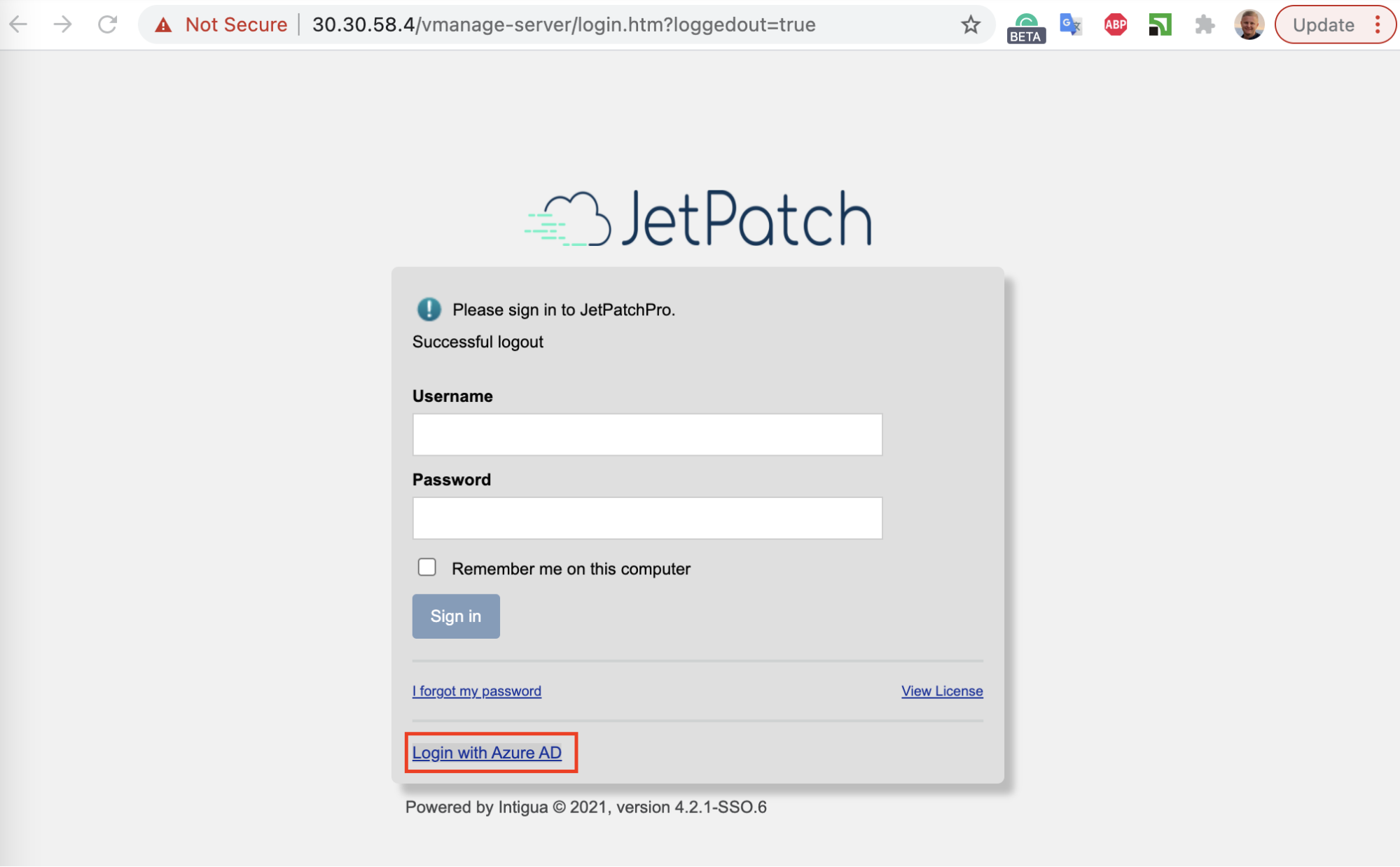 User is already logged in to the Azure AD case
You will be correctly redirected to the default page
If we click the “Platform configuration” icon
We will see that we are logged in with permissions of the JetPatch Azure Group.
The name of the logged user will correspond to the name of the Azure user.
User is not already logged in to the |Azure D case
If you are not logged in with Azure AD and you click on the “Login with Azure AD” link to log in, you will be prompted to log in with Microsoft
Choose the account that has the email that we specify when creating a local JetPatch user
User belongs to the Azure AD tenant, but it is not assigned to any of the Azure group cases
If the user belongs to a tenant but does not belong to the JetPatch group, they will see the next message
User does not belong to the Azure AD tenant case
If the user does not belong to the tenant on which we create the registration app
Comments
0 comments
Please sign in to leave a comment.